For Android
NOTE: The instructions for checking Android notifications can vary in different versions of the Android operating system.
- Go to Notifications in your settings (look for the gear-looking icon) and select Apps Notifications. This will display a list of the apps that have recently sent notifications. You can see a more extensive list of apps including: All, Most recent, and Most frequent as options.
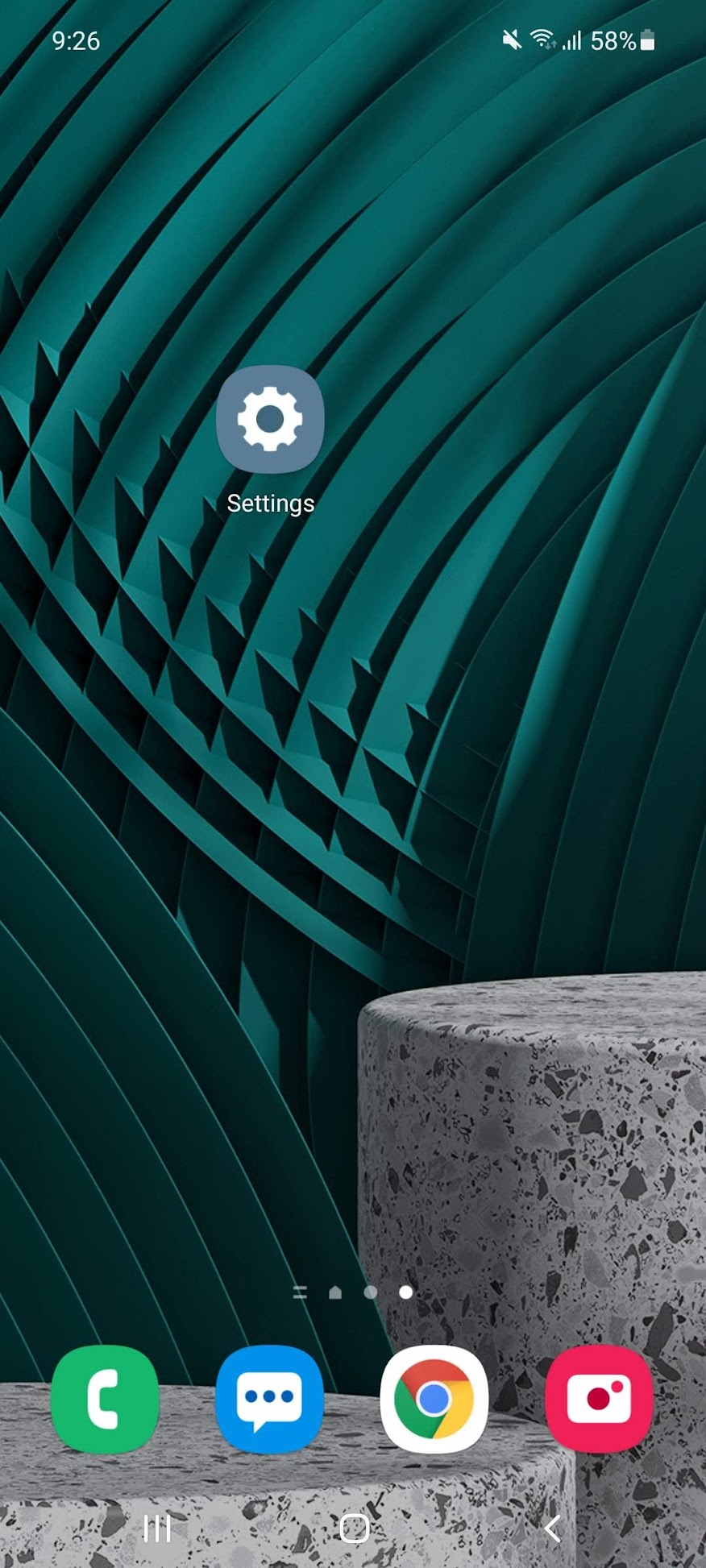
- Tap the Most Recent button to change the way this list is filtered, so it displays all of your apps or ‘most frequent’ first. You can also tap the magnifying glass icon in the top-right to search for a specific app by name.
- Either way, you can turn all notifications off or on with a simple switch of the toggle icon next to each app’s name. If you tap on an app, you can make a more specific alert block, choosing exactly the type of notifications an app sends to turn on or off.
For iOS
NOTE: The instructions for checking iOS notifications can vary in different versions of the iOS operating system on both iPhones and iPads.
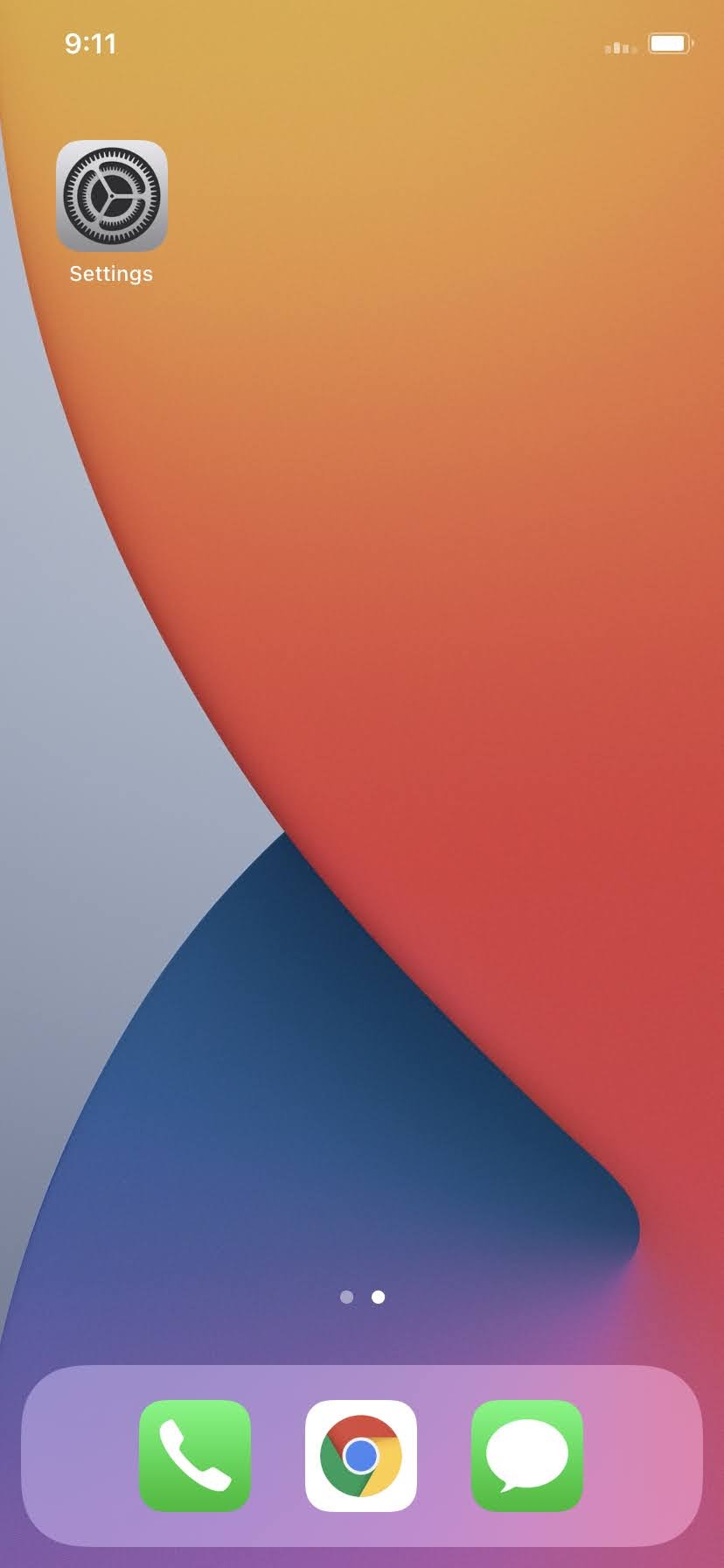
- Go to Settings (gear-looking icon) and tap Notifications.
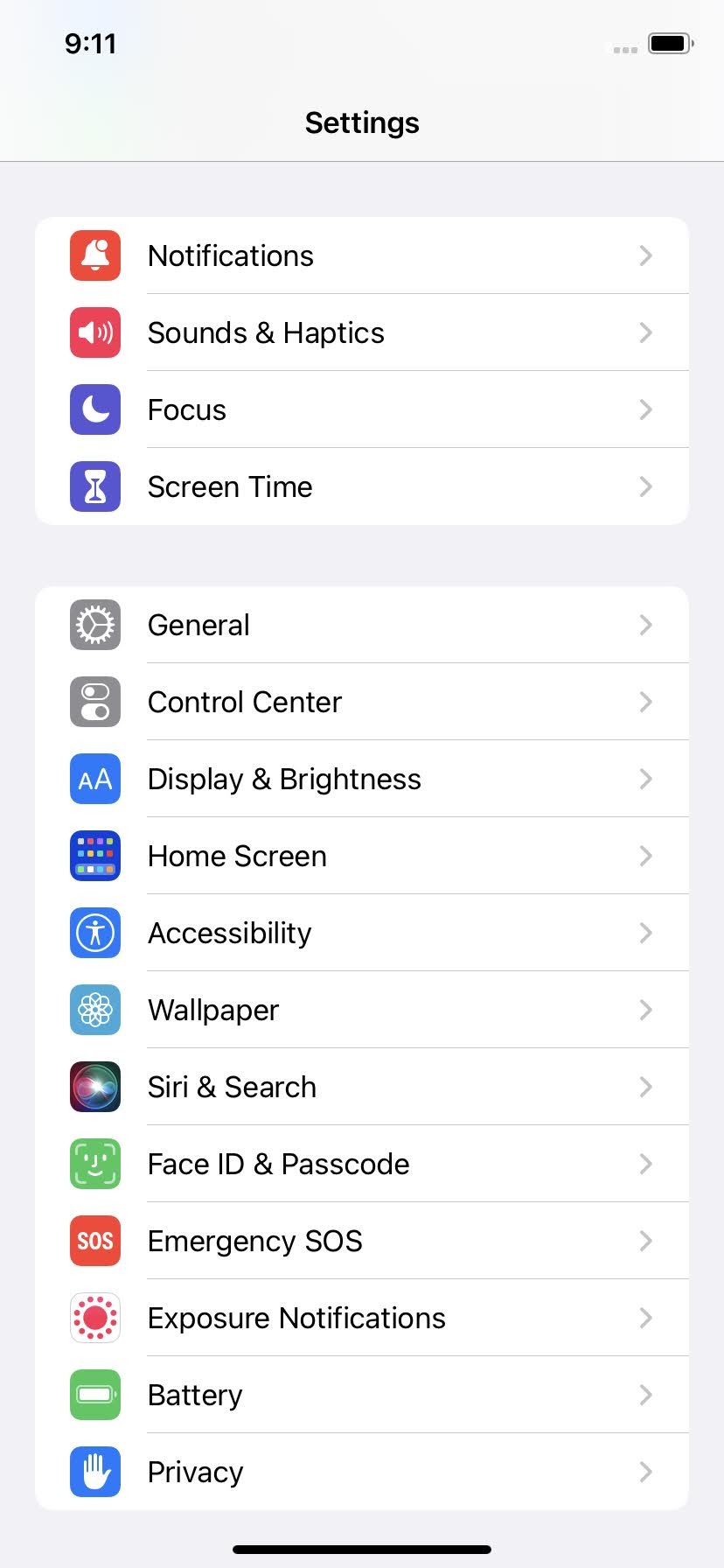
- Scroll down and select the MyOwnDoctor app under Notification Style.
- Toggle Allow Notifications to On or Off.
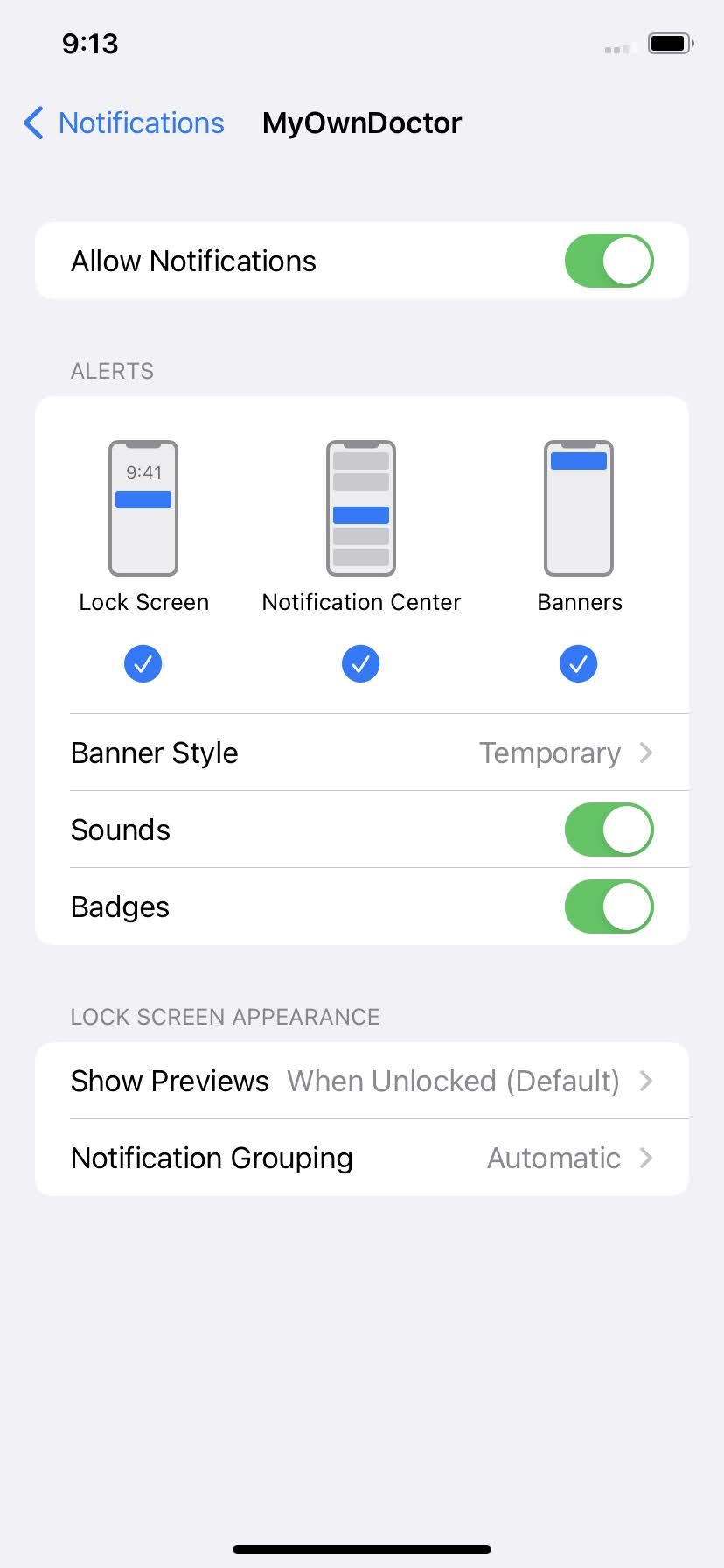
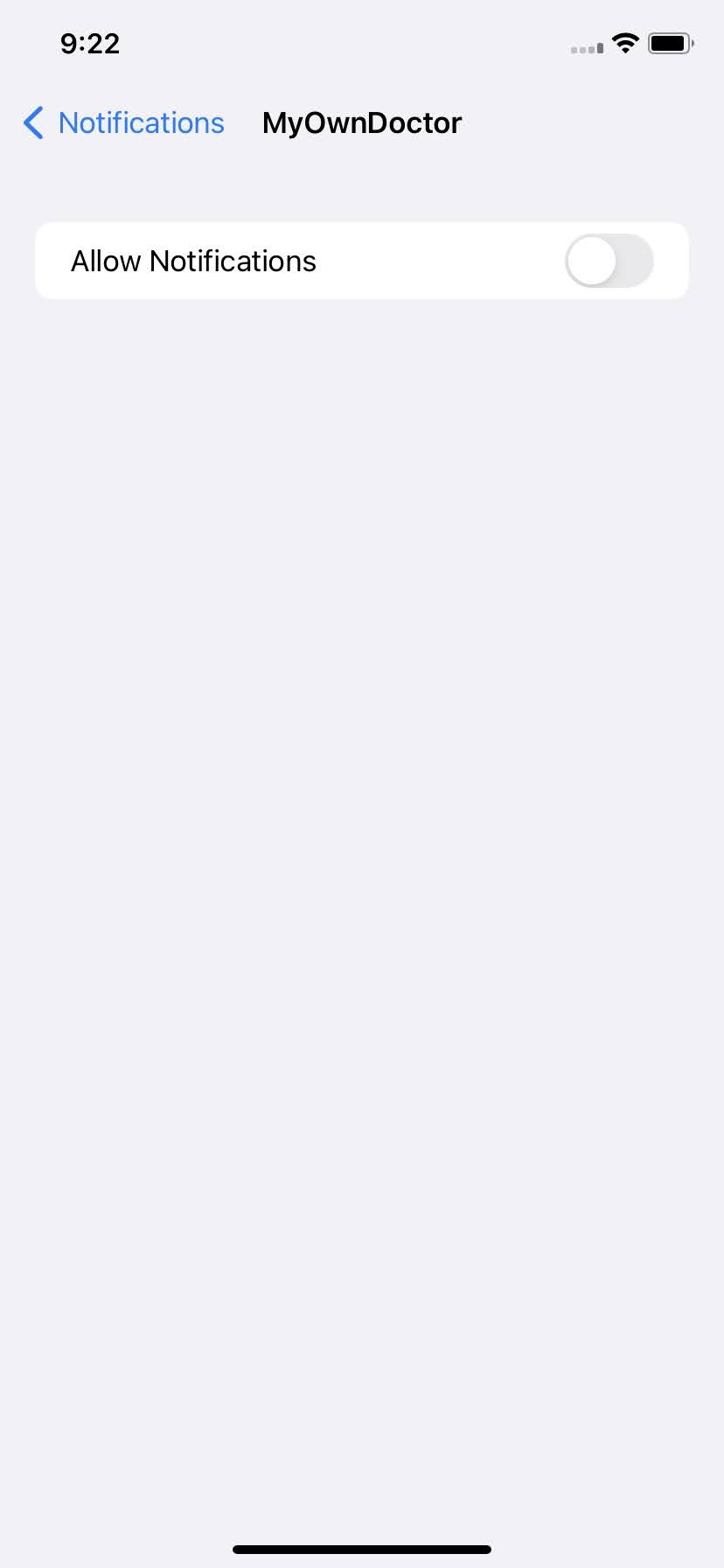
- Under Alerts, choose the alert style that you want. If you turn on Allow Notifications, choose when you want the notifications delivered — immediately or in the scheduled notification summary by clicking on the Back button.